Running Your Programs
There are several different ways to run a L5 program: through VSCodium / VS Code, using the desktop, or through the command line interface (CLI). If you are new to computing or are unsure about the CLI, then we recommend the L5 extension in VSCodium / VSCode or running from the desktop.
Using the L5 extension
If you are using a text editor such as VSCodium or Visual Studio Code (VS Code), you can install an extension that will allow you to run your sketches by pushing a button.
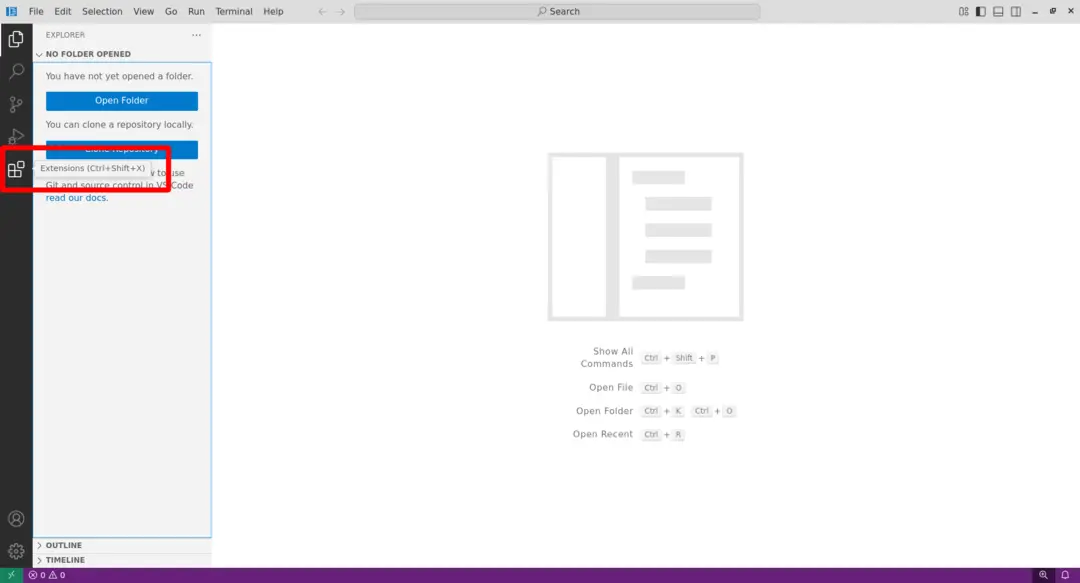
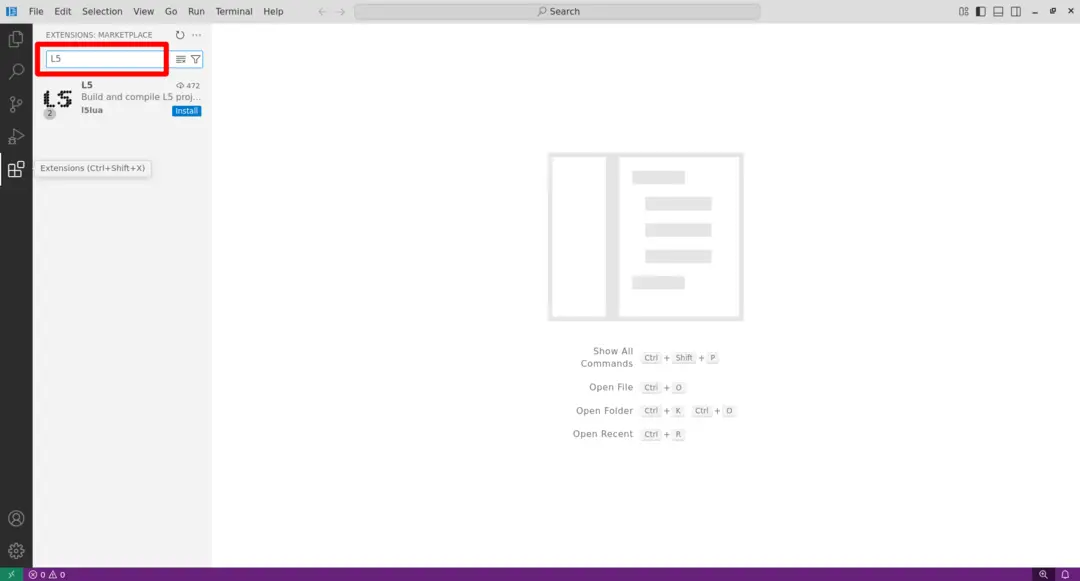
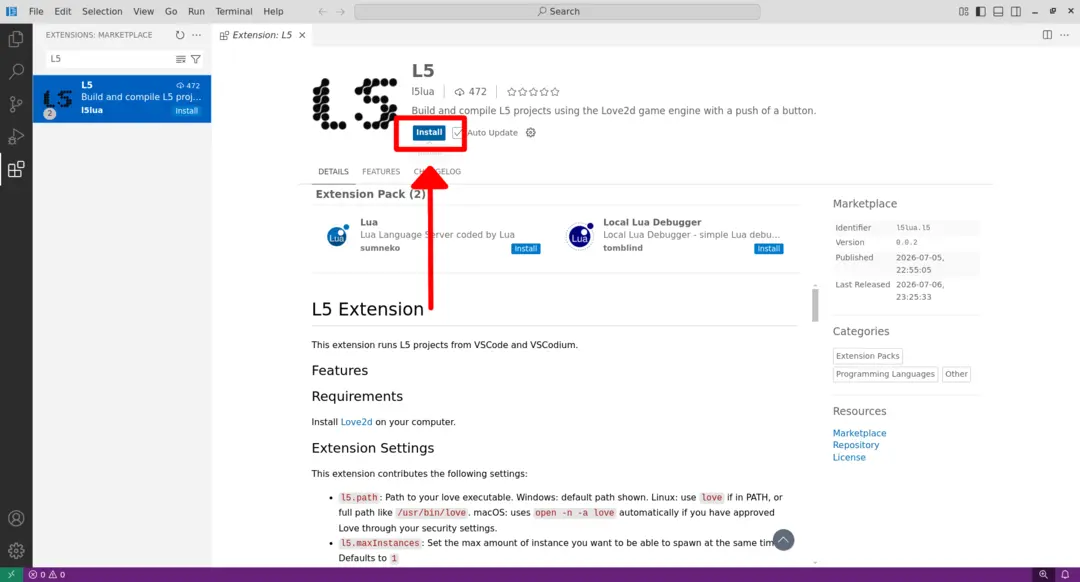
If you haven't installed the extension yet, in VSCodium or VS Code, open the extension menu and install L5:
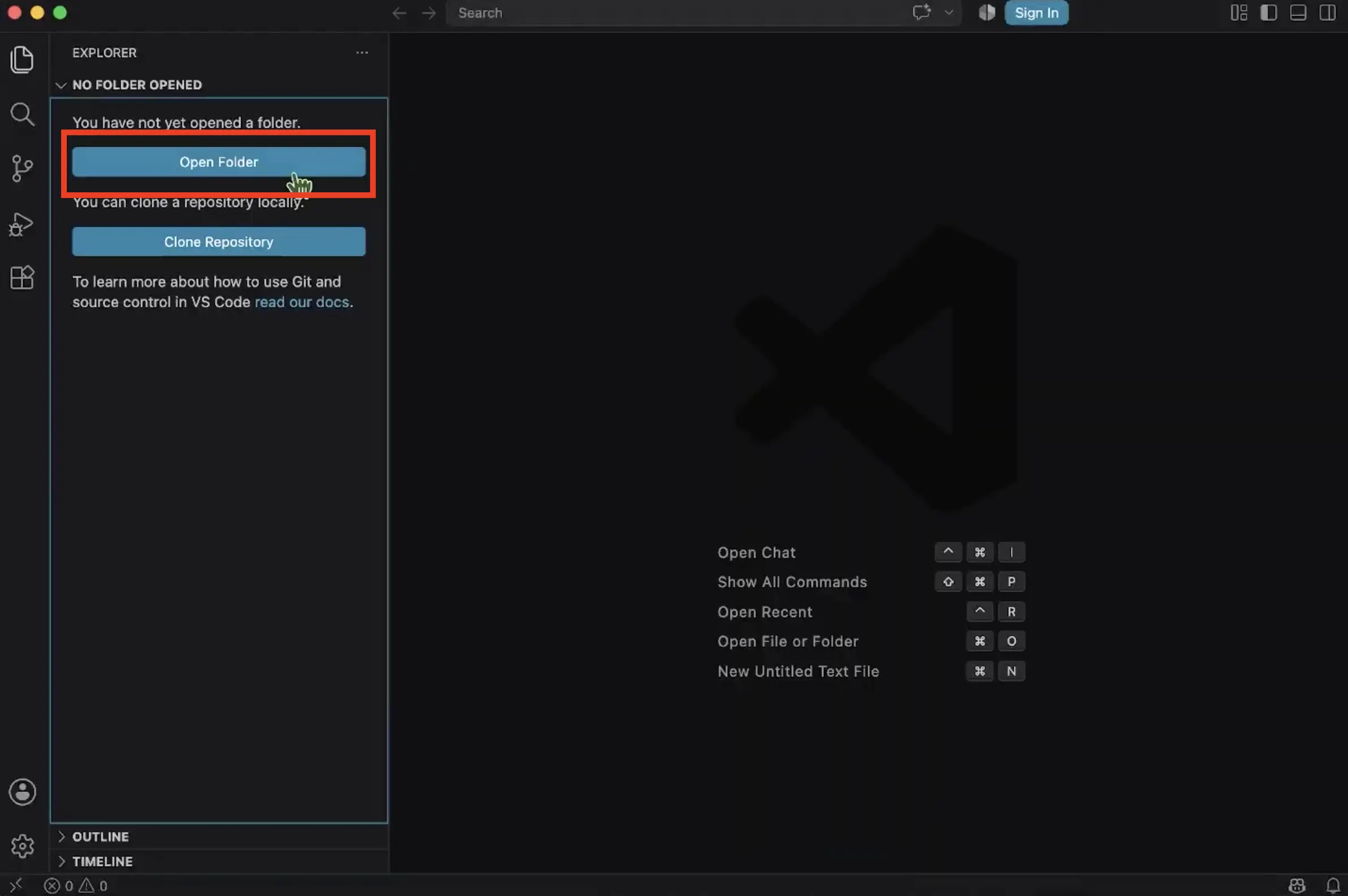
Click to download the L5-starter folder and extract it. In your text editor, click open folder and navigate to the L5-starter folder.
Once it is installed and you have already created a main.lua file (or you downloaded the L5-starter folder), a new button appears in the bottom left corner. If the button does not appear, make sure you have opened a single folder that contains main.lua and L5.lua.
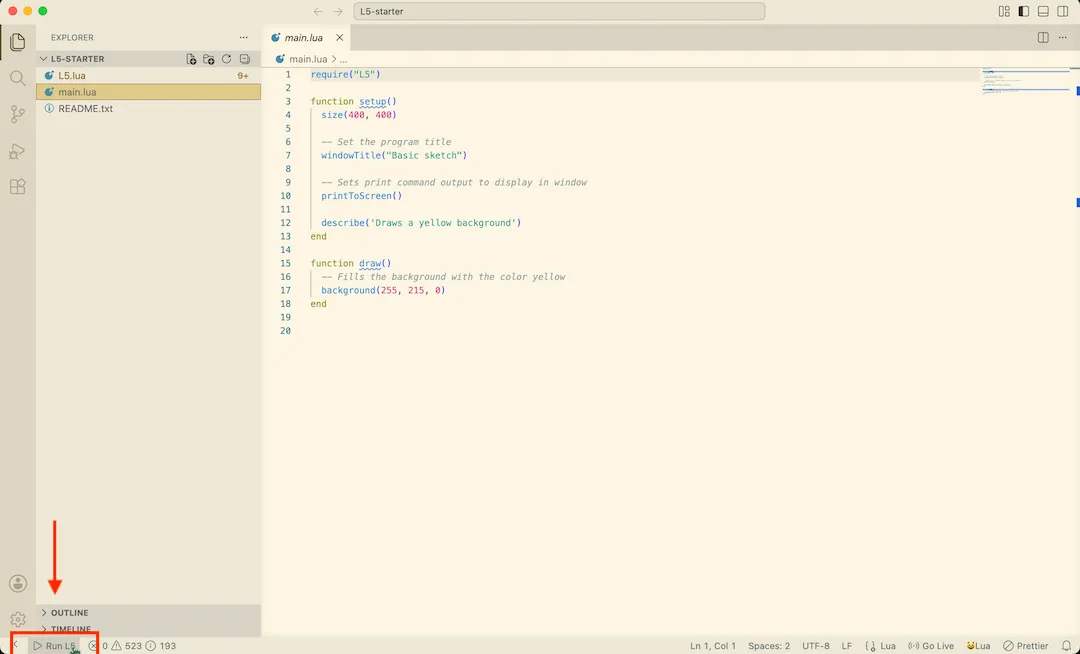
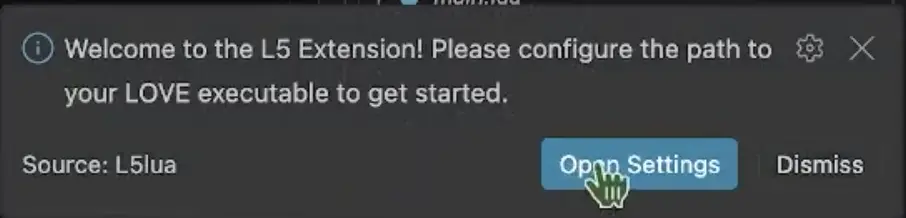
If you are running the extension for the first time, it will prompt you to open your extension settings.
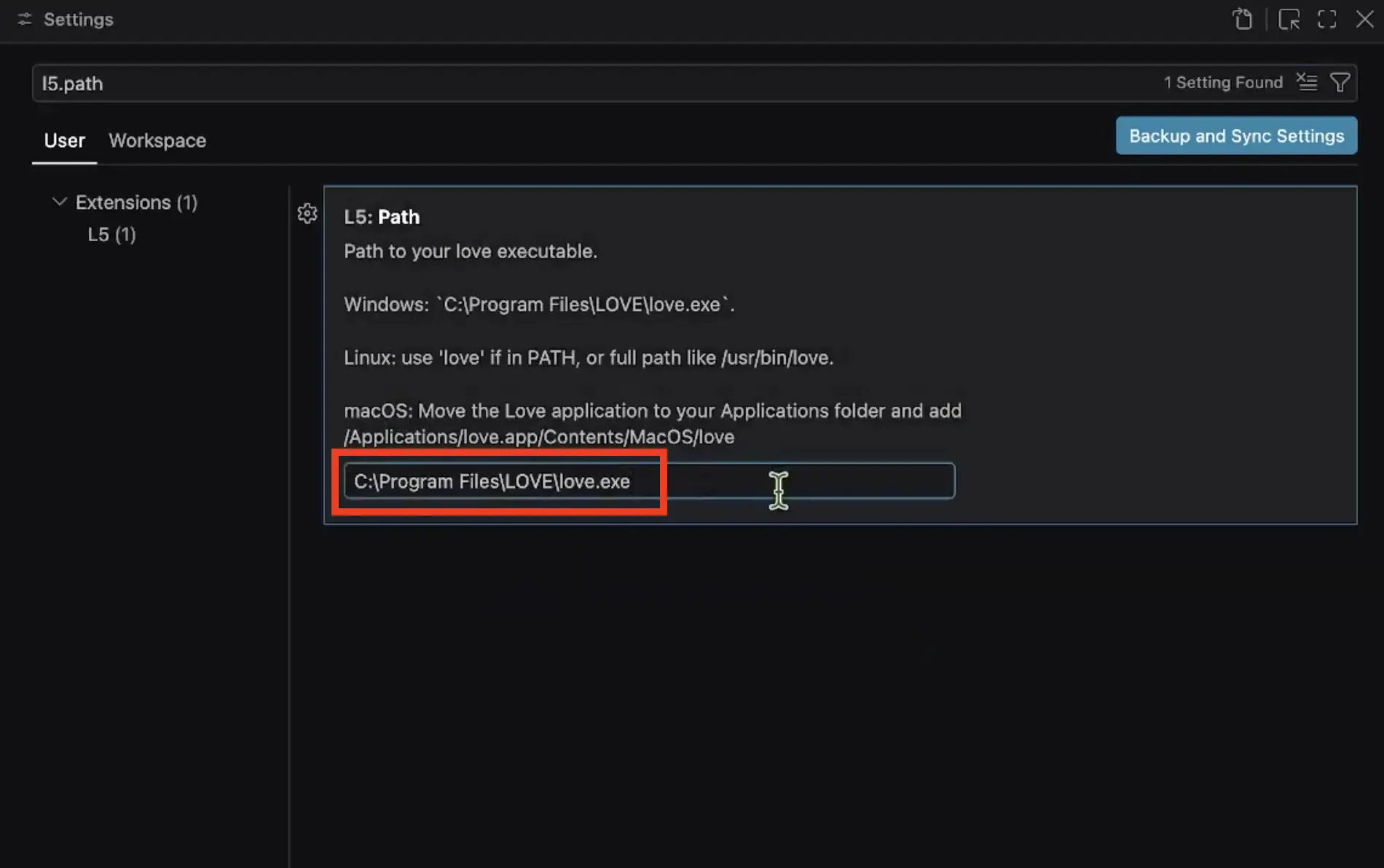
In the settings panel that opens, you will need to specify the path to Love in the input text box at the bottom. The path is where Love exists on your computer.
- Windows: The path is already provided in the text box and you do not need to change anything.
- Linux: Use
loveif installed globally or the full path, usually/usr/bin/love - Mac: By default, Love will be in your Downloads folder. In Finder, drag Love from Downloads to your Applications folder. In the VSCode settings, change the path to
/Applications/love.app/Content/MacOS/love
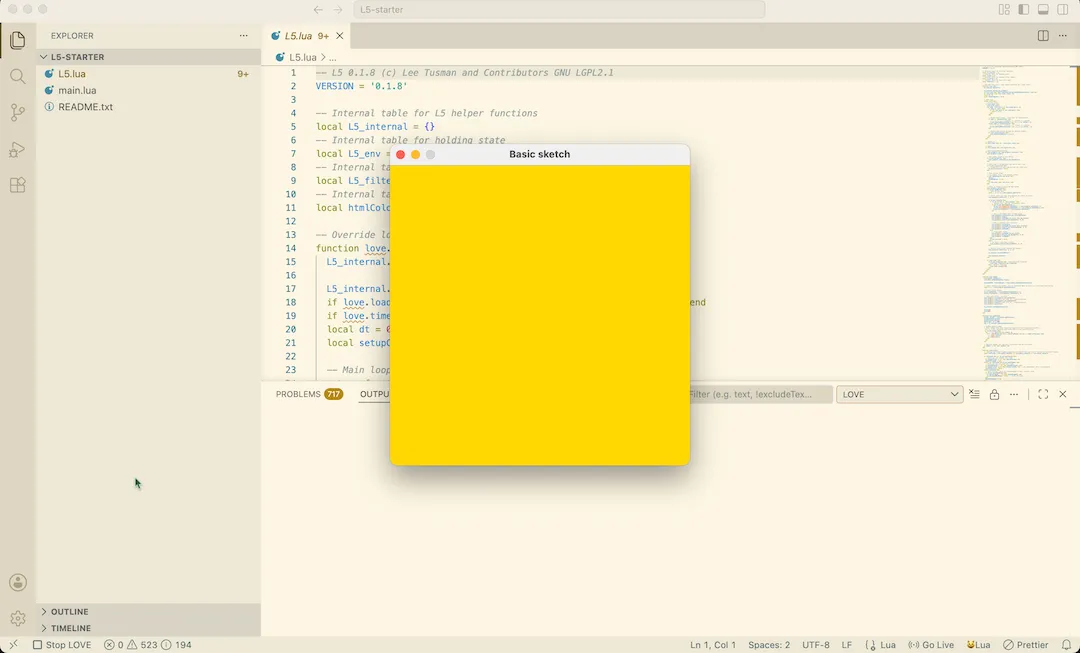
When you want to see your sketch in action, press "Run L5".
You can close the window or push the "Stop" button to stop running your sketch.
You can read more about the settings of the extension in the extension docs. You can also download it directly from the OpenVSX Marketplace or the VS Marketplace.
Running L5 from the desktop
Start by downloading the L5 Starter, a folder containing the L5.lua library file and a starter main.lua file with a simple L5 program. Right click and extract (Windows, Linux)) or uncompress (macOS) the folder.
The easiest way to run your L5 program is to drag the folder containing your main.lua onto the Love2d application. Remember to drag the folder containing main.lua, and not main.lua itself.
It should launch and open a new window with your sketch running in it, or print an error message. If you're running the L5 Starter program, you should see a square window with a yellow background. Congratulations.
By default, print() output only appears if you run your program from the command line. To display print output directly in your sketch window add printToScreen() to your setup() function.
Once you have a sucessfully running program, you're ready for your next steps writing programs with L5. Check out L5 for Processing-p5.js programmers, tutorials or the reference.
Running L5 from the command line
Windows CLI
You can launch your programs from the command line and add the --console flag to be able to see print() and error() output as well:
"C:\Program Files\LOVE\love.exe" --console
"C:\Users\<YourUsername>\Desktop\L5-starter"
Replace <YourUsername> and Desktop\L5-starter with your actual username and the location of your program folder.
macOS CLI
There are a few extra steps to smoothly set up command line usage for L5 in the command line on Mac.
If Love is installed in your applications folder you can run:
open -n -a love "~/path/to/my-program"
This will not send debugging and print information to the Terminal nor any describe() text. To see printed text in the command line you need to run the Love program from Applications, like this:
/Applications/love.app/Contents/MacOS/love ~/path/to/my-program
You can set up an alias in your Terminal session to call the binary when you use love by adding an alias to your ~/.zshrc file (Z shell configuration file).
Open the file with:
open -a TextEdit ~/.zshrc
You may have to create the file first if it does not yet exist.
touch ~/.zshrc
Then paste in the following code and save the file:
# alias to love
alias love="/Applications/love.app/Contents/MacOS/love"
Now you can call love from the command line like Linux and Windows:
love ~/path/to/my-program
If this doesn't works you should reload the .zshrc file and then try running the program again.
source ~/.zshrc
love ~/path/to/my-program
Linux CLI
In the Terminal, you can run love path/to/L5-starter. Or if you are in the folder with your program, run love . to launch your project from the current directory.
It should now launch and you should see a new window open with your code sketch running.

Now you are ready to start learning with First Steps. If you are familiar with Lua, p5.js, or Processing already, you should take a look at L5 for Processing-p5.js Programmers.
Instructions adapted from Love2d wiki: Getting Started, GNU Free Documentation License 1.3.