Animation
Previous tutorials: If Statements
You now know how to call functions, use variables, create variables and functions, and use if statements. This tutorial shows you how to create animations!
The draw() Function
You've been using the draw() function in every program so far. But what exactly does it do?
L5 automatically calls your draw() function 60 times per second. Each time draw() is called is called a frame.
Every time you draw something, you're drawing a single frame. L5 draws 60 frames per second, which creates the illusion of movement - just like a flip book or a movie!
Creating Animation
To create an animation, you need to do two things:
- Change what you draw each frame
- Clear the previous frame before drawing the new one
Here's a simple example:
require("L5")

circleY = 0

function setup()
  size(300, 300)
end

function draw()
  background(220)
  circle(150, circleY, 50)
  circleY = circleY + 1
end
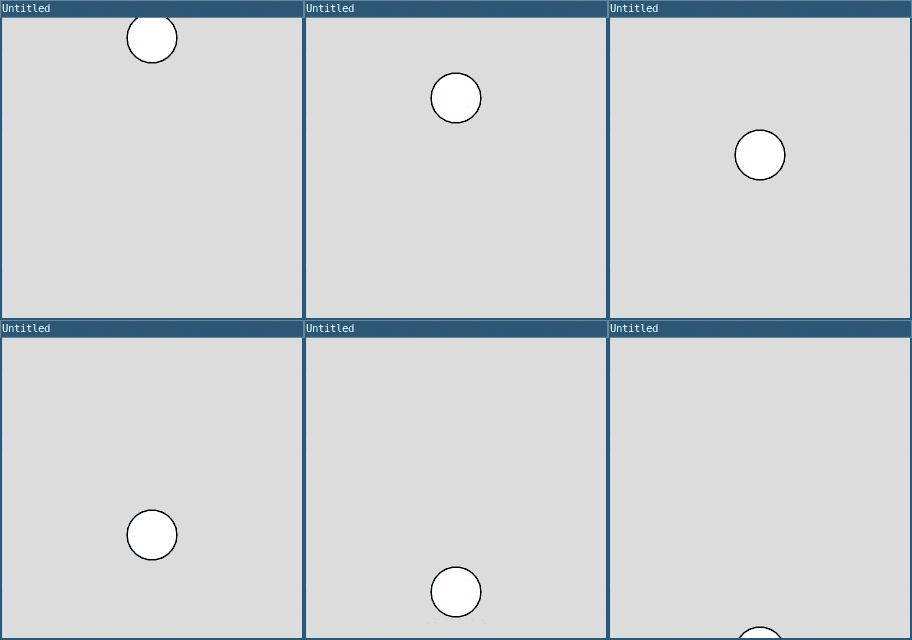
This creates a circleY variable that starts at 0. Each frame:
* The code draws a gray background (which clears the previous frame)
* Draws a circle at position (150, circleY)
* Increases circleY by 1
The result is a circle that falls down the screen!
Organizing Variables
Notice that circleY is initialized at the top of the program. This is a good practice because it makes it easy to see all your variables in one place.
In Lua, variables are global by default (unless you use the local keyword), so technically you could initialize circleY anywhere. However, organizing your variables at the top makes your code cleaner and easier to read.
Resetting Position
The circle in the first example falls off the screen and never comes back. You can use an if statement to reset it:
require("L5")

circleY = 0

function setup()
  size(300, 300)
end

function draw()
  background(220)
  circle(150, circleY, 50)
  circleY = circleY + 1

  -- Reset when it goes off the bottom
  if circleY > height then
    circleY = 0
  end
end
Now when the circle goes off the bottom, it reappears at the top!
Bouncing
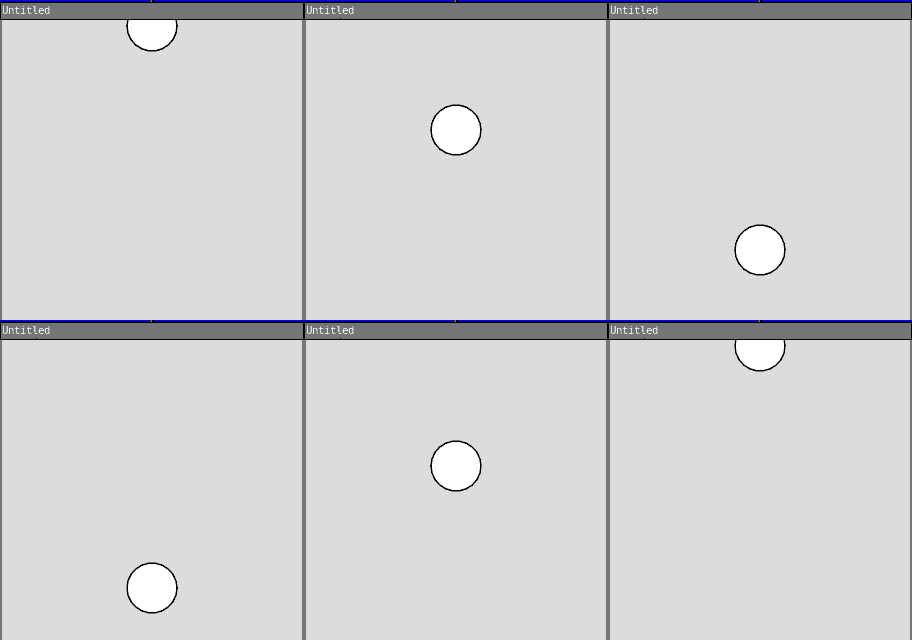
You can make a ball bounce by reversing its direction when it hits an edge:
require("L5")

circleY = 0
ySpeed = 2

function setup()
  size(300, 300)
end

function draw()
  background(220)
  circle(150, circleY, 50)
  circleY = circleY + ySpeed

  -- Bounce off top and bottom
  if circleY < 0 or circleY > height then
    ySpeed = ySpeed * -1
  end
end
When circleY goes above 0 or below height, the code multiplies ySpeed by -1, which reverses its direction.
Two-Dimensional Movement
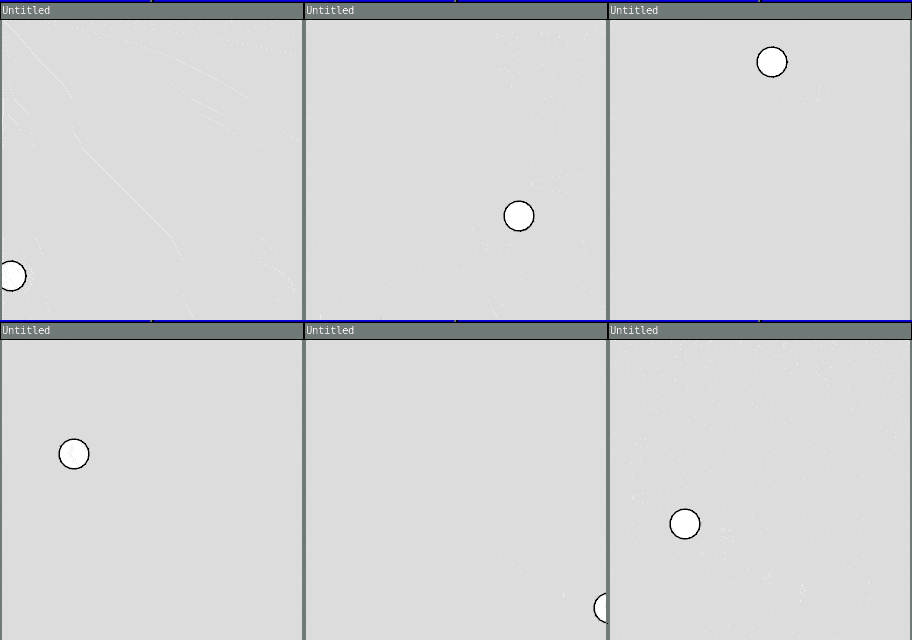
You can animate movement in both x and y directions:
require("L5")

ballX = 150
ballY = 150
xSpeed = 3
ySpeed = 2

function setup()
  size(300, 300)
end

function draw()
  background(220)

  -- Draw ball
  circle(ballX, ballY, 30)

  -- Move ball
  ballX = ballX + xSpeed
  ballY = ballY + ySpeed

  -- Bounce off left and right edges
  if ballX < 0 or ballX > width then
    xSpeed = xSpeed * -1
  end

  -- Bounce off top and bottom edges
  if ballY < 0 or ballY > height then
    ySpeed = ySpeed * -1
  end
end
This creates a ball that bounces around the screen in both directions!
Growing and Shrinking
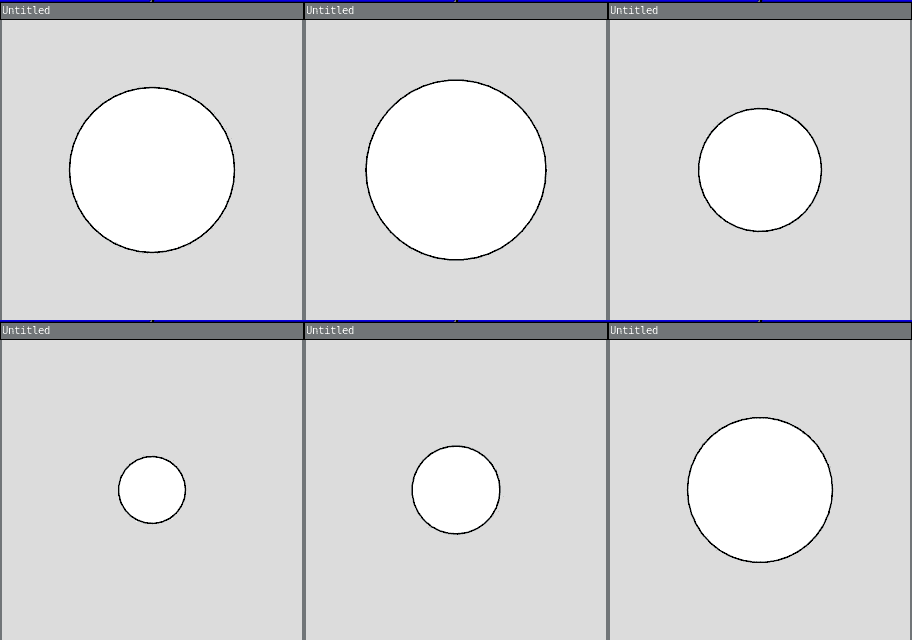
You can animate size changes too:
require("L5")

circleSize = 50
growing = true

function setup()
  size(300, 300)
end

function draw()
  background(220)
  circle(150, 150, circleSize)

  if growing then
    circleSize = circleSize + 1
  else
    circleSize = circleSize - 1
  end

  -- Switch direction at limits
  if circleSize > 200 then
    growing = false
  elseif circleSize < 50 then
    growing = true
  end
end
This makes a circle that grows and shrinks!
Color Animation
You can animate colors too:
require("L5")

redValue = 0
redSpeed = 2

function setup()
  size(300, 300)
end

function draw()
  background(220)

  fill(redValue, 100, 100)
  circle(150, 150, 100)

  redValue = redValue + redSpeed

  -- Bounce between 0 and 255
  if redValue < 0 or redValue > 255 then
    redSpeed = redSpeed * -1
  end
end
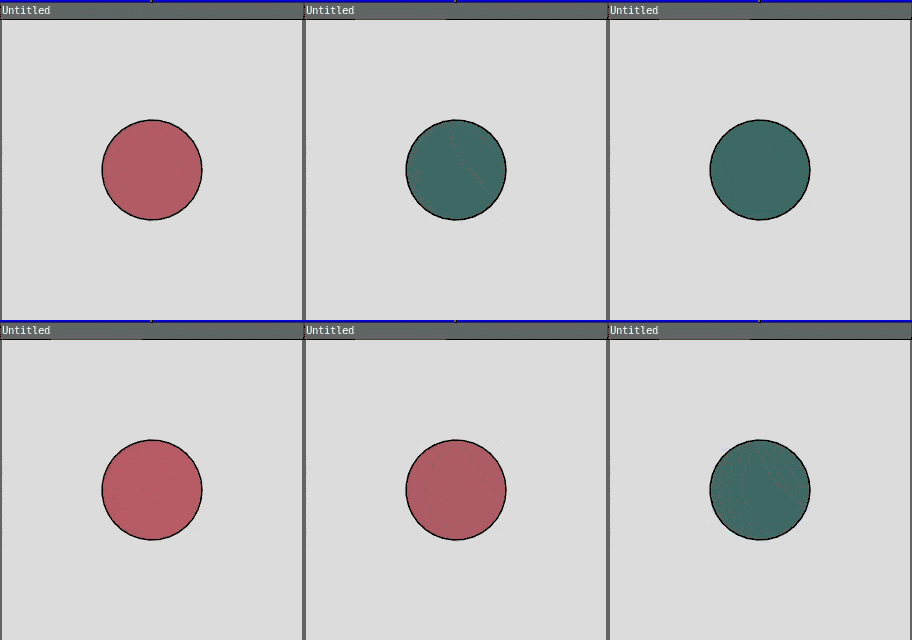
This creates a circle that pulses between dark and bright red!
Trails
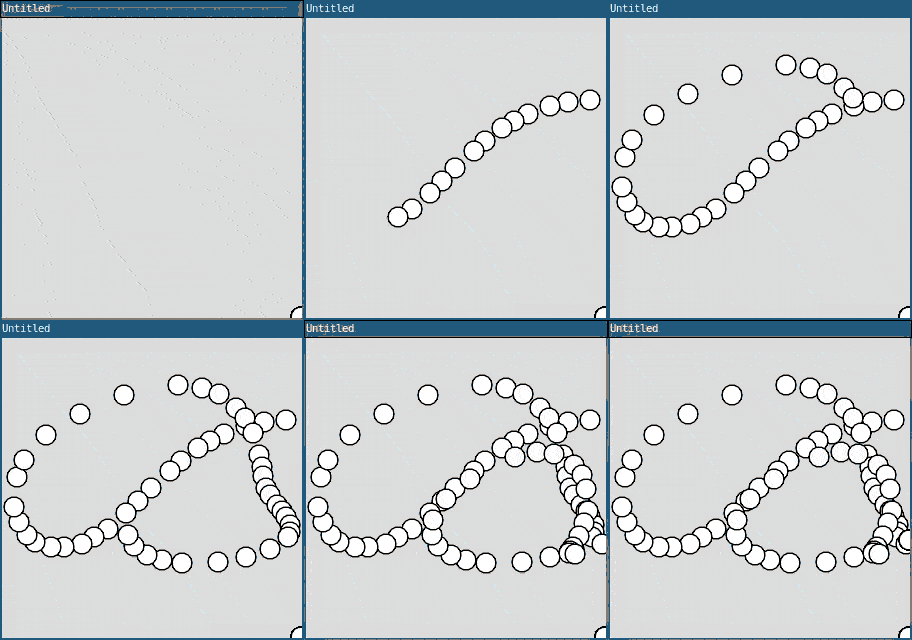
If you don't call background() in the draw() function, old frames stay visible:
require("L5")

function setup()
  size(300, 300)
  background(220)  -- Only clear once in setup
end

function draw()
  -- No background() call here!
  circle(mouseX, mouseY, 20)
end
This creates a drawing program that leaves a trail of circles wherever you move your mouse!
frameCount
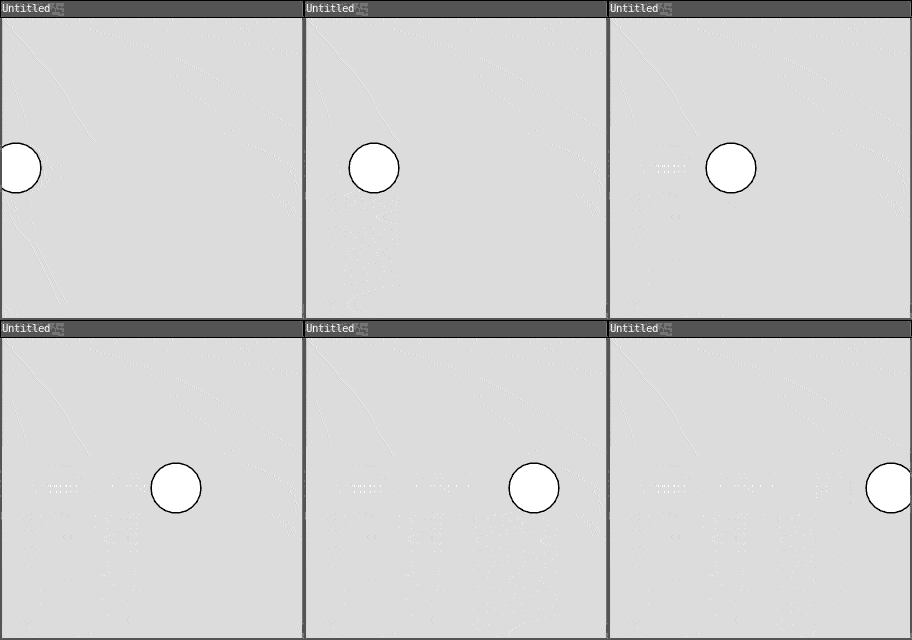
L5 provides a frameCount variable that increases every frame. You can use it to create animations based on time:
require("L5")

function setup()
  size(300, 300)
end

function draw()
  background(220)

  -- Move based on frameCount
  x = frameCount % width  -- % is the modulo operator
  circle(x, 150, 50)
end
The % (modulo) operator gives you the remainder after division, which makes the circle wrap around the screen.
Practice
Before moving on to the next tutorial, practice creating animations!
Here are some ideas:
- Create a ball that bounces around the screen and changes color when it hits edges
- Make multiple circles that move at different speeds
- Create a "breathing" animation where a circle grows and shrinks smoothly
- Animate a face where the eyes follow the mouse
- Create a simple solar system with planets orbiting
- Make a "screensaver" with multiple bouncing shapes
Next tutorial: Input
This tutorial is adapted from Animation by Happy Coding, licensed under CC BY 4.0.