Creating Variables
Previous tutorial: Using Variables
You now know how to use variables that L5 provides, like width and height. This tutorial teaches you how to create your own variables!
Creating Variables
To create a variable, you need to give it a name and a value. In Lua, you do this by writing the variable name, then an equals sign =, then the value:
flowerX = 150
This creates a variable named flowerX and sets its value to 150.
You can then use your variable just like you'd use any value or other variable:
circle(flowerX, 200, 100)
This draws a circle at position (150, 200) with a diameter of 100.
Example: Custom Flower
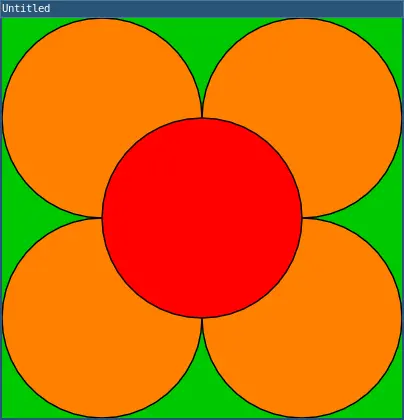
Remember the flower example from the previous tutorial that used the width and height variables?
require("L5")

function setup()
  size(300, 300)
end

function draw()
  background(0, 200, 0)

  fill(255, 128, 0)
  circle(width / 4, height / 4, width / 2)
  circle(width * 0.75, height / 4, width / 2)
  circle(width / 4, height * 0.75, width / 2)
  circle(width * 0.75, height * 0.75, width / 2)

  fill(255, 0, 0)
  circle(width / 2, height / 2, width / 2)
end
This code uses the width and height variables to draw a flower that fills up the window. But what if you want more control over where and how big the flower is?
You can create your own variables!
require("L5")

flowerX = 150
flowerY = 150
petalSize = 100
petalDistance = petalSize / 2

function setup()
  size(300, 300)
end

function draw()
  background(0, 200, 0)

  fill(255, 128, 0)
  circle(flowerX - petalDistance, flowerY - petalDistance, petalSize)
  circle(flowerX + petalDistance, flowerY - petalDistance, petalSize)
  circle(flowerX - petalDistance, flowerY + petalDistance, petalSize)
  circle(flowerX + petalDistance, flowerY + petalDistance, petalSize)

  fill(255, 0, 0)
  circle(flowerX, flowerY, petalSize)
end
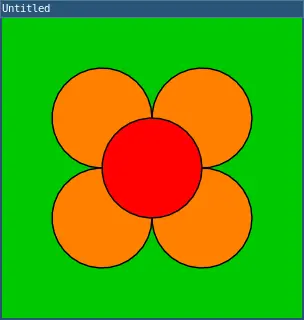
Now the code uses the flowerX and flowerY variables to position the flower, and the petalSize variable to set its size. Try changing these values to move the flower around or make it bigger or smaller!
Notice that the variables are created at the top of the program, before the setup() function. This is important - you'll learn why in a minute.
Variable Scope
How you create a variable determines where you can use it. This is called variable scope.
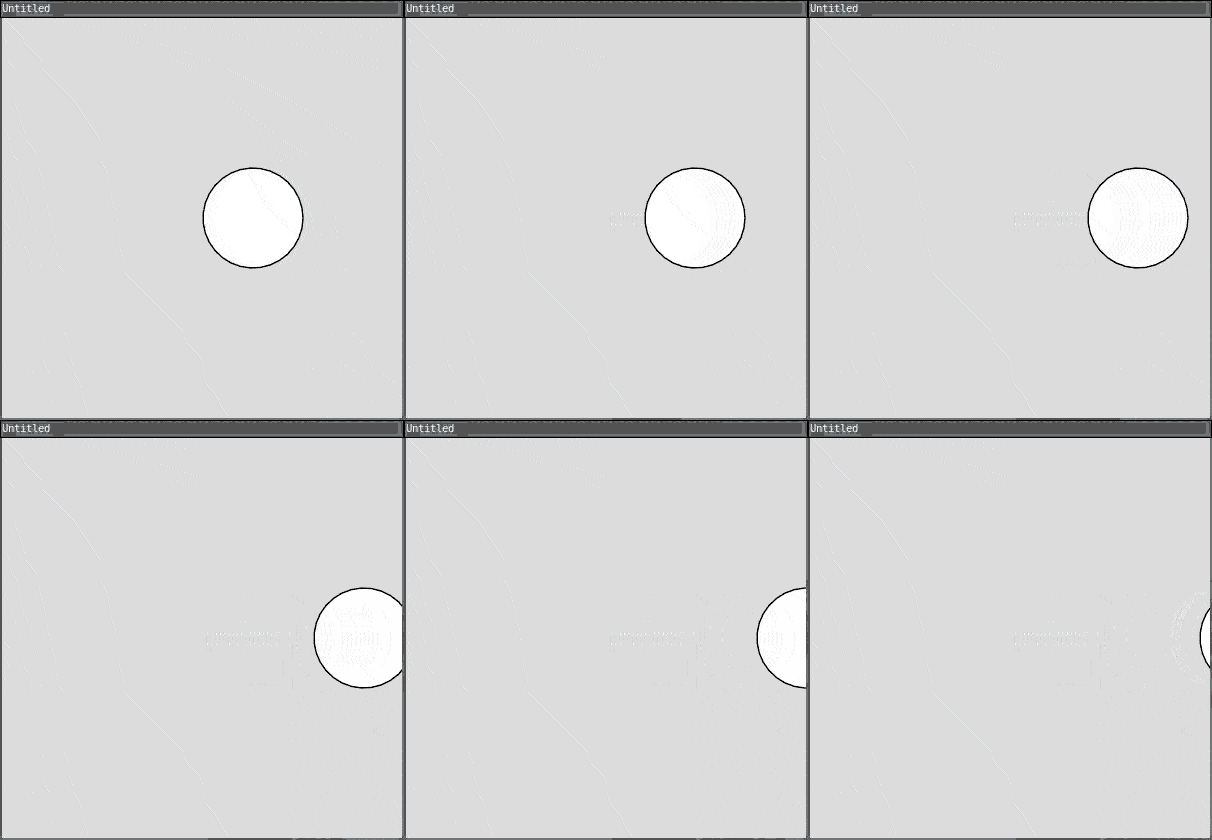
By default in Lua, variables are global - they can be used anywhere in your code:
require("L5")

circleX = 200  -- Global variable (no 'local' keyword)

function setup()
  size(400, 400)
end

function draw()
  background(220)
  circle(circleX, 200, 100)  -- Can use circleX here
  circleX = circleX + 1       -- Can change it too
end
To make a variable local, use the local keyword before the variable name. Local variables have block scope - they only exist within the block (function, if statement, loop, etc.) where they're created:
require("L5")

function setup()
  size(400, 400)
  local x = 200  -- Local variable - only exists in setup()
end

function draw()
  background(220)
  circle(x, 200, 100)  -- ERROR! x doesn't exist here
end
For the programs in these tutorials, we'll create variables at the top of the program so we can use them in both setup() and draw() functions. You can use local at the top of the program too - since the entire program is one block, a local variable at the top acts like a global variable for your program.
Reassigning Variables
You can change the value of a variable by reassigning it:
require("L5")

circleX = 50

function setup()
  size(400, 400)
end

function draw()
  background(220)
  circle(circleX, 200, 100)
  circleX = circleX + 1  -- Increase circleX by 1
end
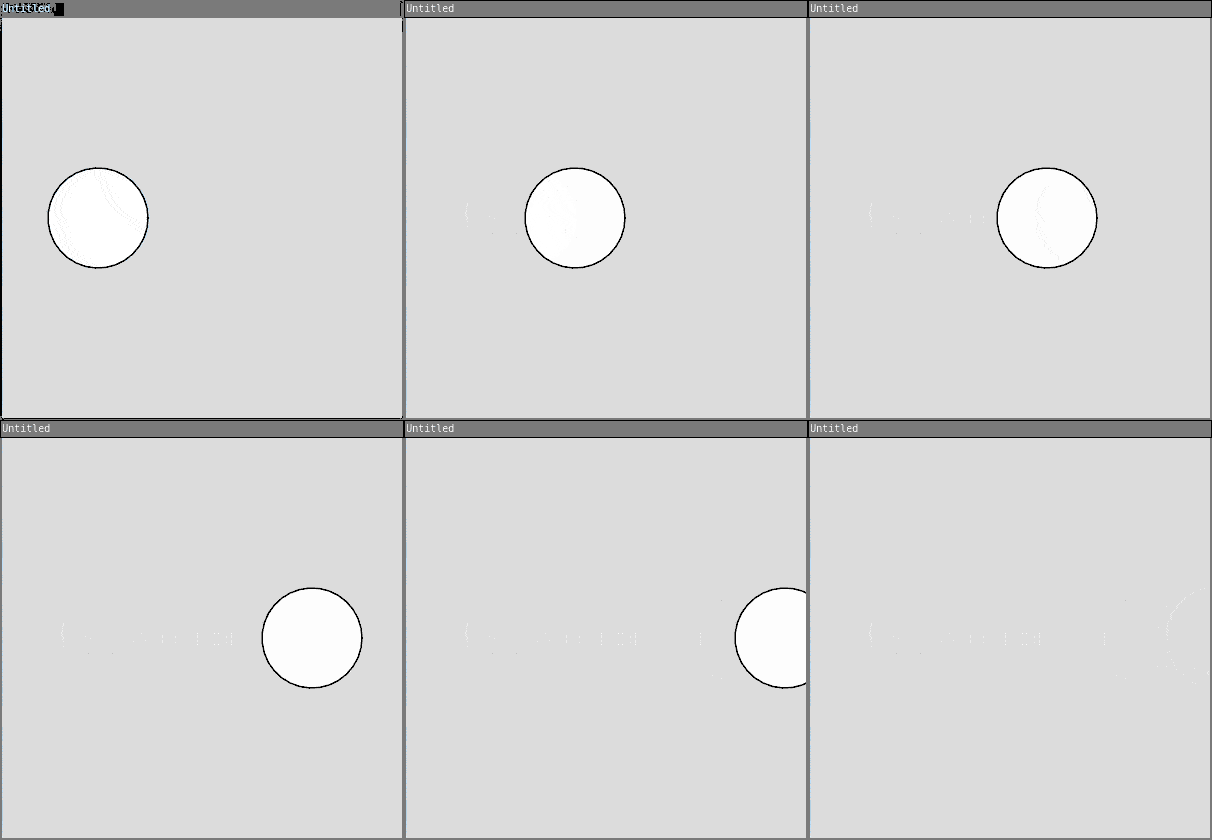
This code creates a circleX variable with a value of 50. Then in the draw() function (which is called 60 times per second), it draws a circle at that x position, and then increases circleX by 1.
The result is an animation where the circle moves to the right!
The random() Function
L5 provides a random() function that gives you a random value. You can use it to create random drawings!
One parameter - random value between 0 and the parameter:
x = random(width) -- Random value between 0 and width
Two parameters - random value between the two parameters:
x = random(100, 300) -- Random value between 100 and 300
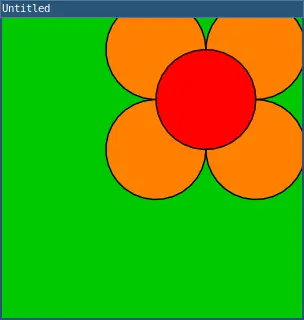
Here's an example that draws a flower at a random position:
require("L5")

flowerX = random(50, 250)
flowerY = random(50, 250)
petalSize = 100
petalDistance = petalSize / 2

function setup()
  size(300, 300)
end

function draw()
  background(0, 200, 0)

  fill(255, 128, 0)
  circle(flowerX - petalDistance, flowerY - petalDistance, petalSize)
  circle(flowerX + petalDistance, flowerY - petalDistance, petalSize)
  circle(flowerX - petalDistance, flowerY + petalDistance, petalSize)
  circle(flowerX + petalDistance, flowerY + petalDistance, petalSize)

  fill(255, 0, 0)
  circle(flowerX, flowerY, petalSize)
end
Try running this program multiple times - the flower will appear in a different location each time!
Random Animation
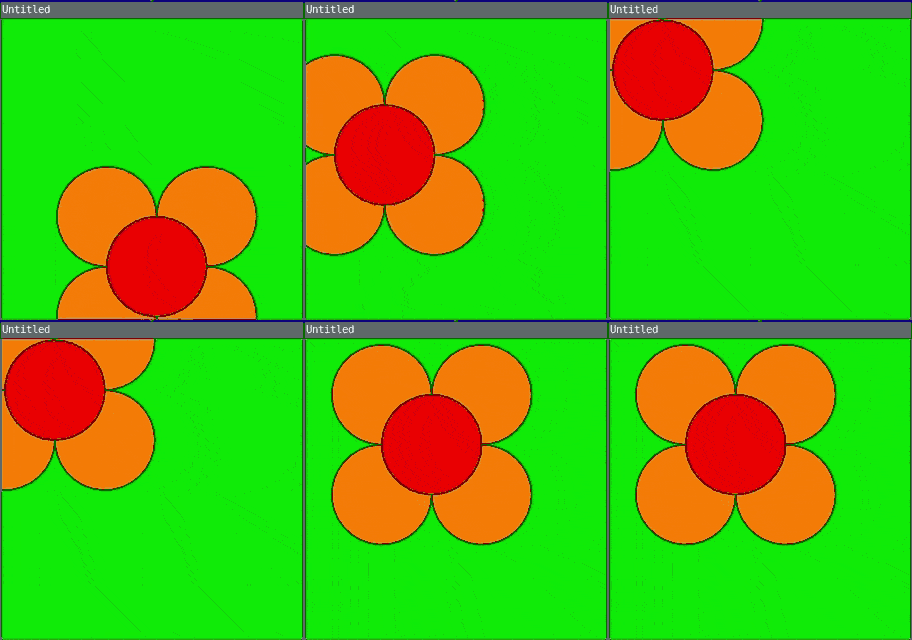
You can combine variables, reassignment, and the random() function to create random animations:
require("L5")

flowerX = 150
flowerY = 150
petalSize = 100
petalDistance = petalSize / 2

function setup()
  size(300, 300)

  -- change frameRate so draw runs only 5 times a second instead of 60
  frameRate(5)
end

function draw()
  -- New random position each frame
  flowerX = random(50, 250)
  flowerY = random(50, 250)

  background(0, 200, 0)

  fill(255, 128, 0)
  circle(flowerX - petalDistance, flowerY - petalDistance, petalSize)
  circle(flowerX + petalDistance, flowerY - petalDistance, petalSize)
  circle(flowerX - petalDistance, flowerY + petalDistance, petalSize)
  circle(flowerX + petalDistance, flowerY + petalDistance, petalSize)

  fill(255, 0, 0)
  circle(flowerX, flowerY, petalSize)
end
Every frame (every time draw is run), this code assigns new random values to flowerX and flowerY, then clears the background and draws a new flower. The result is a flower that jumps around randomly!
We changed the framerate to 5, meaning it will run draw 5 times a second instead of the default at 60, which would flicker to fast for our eyes to be comfortable.
Try removing the background() call to see what happens when you don't clear old frames!
Practice
Before moving on to the next tutorial, practice creating your own variables!
Here are some ideas:
- Take your drawing from the previous tutorial and modify it to use your own variables for position and size
- Create an animation where a shape moves across the screen
- Create a drawing where shapes appear at random positions
- Make a shape that moves in a random direction each frame
- Create variables for RGB color values and use them to draw shapes with custom colors
Next tutorial: Creating Functions
This tutorial is adapted from Creating Variables by Happy Coding, licensed under CC BY 4.0.