If Statements
Previous tutorial: Creating Functions
Note: If you are running your programs by dragging their project folder onto the Love application, be sure to add the printToScreen() function within your setup() to be able to see the output of print() commands in your program window.
You now know how to call functions, use variables, create your own variables, and create your own functions. This tutorial introduces if statements, which let your code make decisions!
Boolean Values
So far you've used number values like 100 and 255. Lua also has another type of value called a boolean which can be either true or false.
You can create boolean variables just like number variables:
isHappy = true
isSad = false
Comparison Operators
You can compare two values using comparison operators:
==equals~=not equals (note: Lua uses~=instead of!=)<less than>greater than<=less than or equal to>=greater than or equal to
These comparisons evaluate to boolean values:
x = 100
print(x < 200)  -- prints true
print(x > 200)  -- prints false
print(x == 100) -- prints true
If Statements
An if statement runs code only when a condition is true.
The syntax in Lua is:
if condition then
  -- code to run if condition is true
end
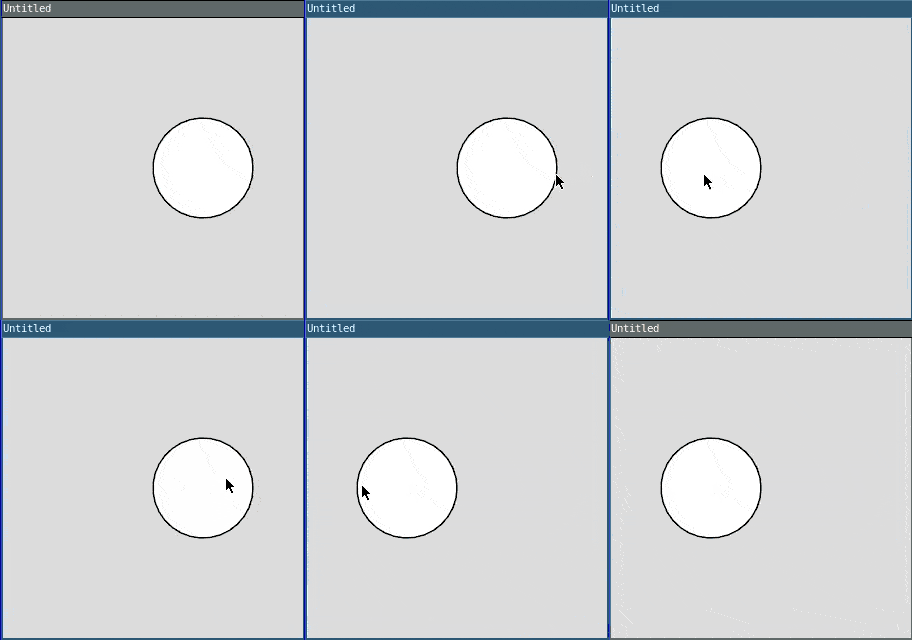
Here's an example:
require("L5")

function setup()
  size(300, 300)
end

function draw()
  background(220)

  if mouseX < 150 then
    circle(100, 150, 100)
  end

  if mouseX >= 150 then
    circle(200, 150, 100)
  end
end
This code checks whether mouseX is less than 150. If it is, it draws a circle on the left. Then it checks whether mouseX is greater than or equal to 150, and if so, draws a circle on the right.
Try moving your mouse left and right to see the circles appear!
Else
You can use else to run code when the condition is false:
if condition then
  -- code to run if condition is true
else
  -- code to run if condition is false
end
Here's the previous example rewritten using else:
require("L5")

function setup()
  size(300, 300)
end

function draw()
  background(220)

  if mouseX < 150 then
    circle(100, 150, 100)
  else
    circle(200, 150, 100)
  end
end
This does the same thing, but it's shorter and easier to read!
Elseif
You can use elseif to check multiple conditions:
if condition1 then
  -- code to run if condition1 is true
elseif condition2 then
  -- code to run if condition2 is true
else
  -- code to run if both conditions are false
end
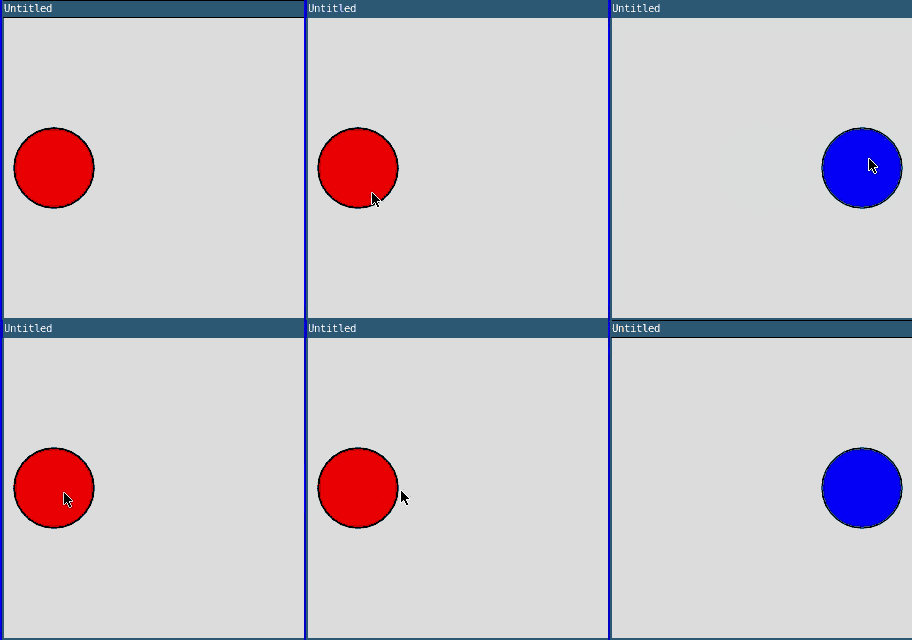
Here's an example that divides the screen into three sections:
require("L5")

function setup()
  size(300, 300)
end

function draw()
  background(220)

  if mouseX < 100 then
    fill(255, 0, 0)  -- Red
    circle(50, 150, 80)
  elseif mouseX < 200 then
    fill(0, 255, 0)  -- Green
    circle(150, 150, 80)
  else
    fill(0, 0, 255)  -- Blue
    circle(250, 150, 80)
  end
end
The code checks the conditions in order and runs the first one that's true.
Logical Operators
You can combine conditions using logical operators:
and- true if both conditions are trueor- true if at least one condition is truenot- reverses a boolean value
Examples:
-- Check if mouse is in the left half AND top half
if mouseX < width / 2 and mouseY < height / 2 then
  circle(100, 100, 50)
end

-- Check if mouse is near the left OR right edge
if mouseX < 50 or mouseX > width - 50 then
  circle(width / 2, height / 2, 100)
end

-- Check if mouse is NOT in the center
if not (mouseX > 100 and mouseX < 200) then
  circle(mouseX, mouseY, 30)
end
Example: Button
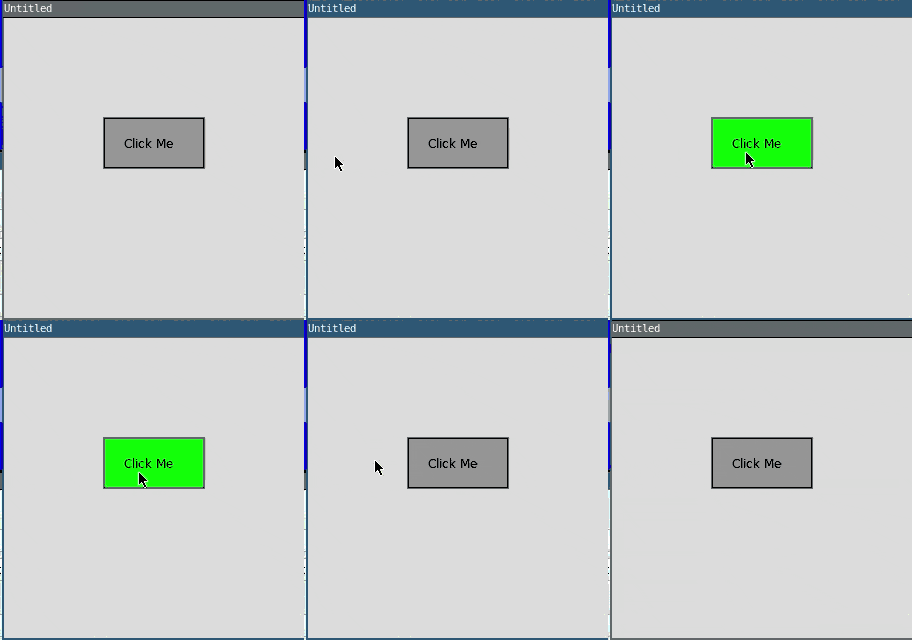
Here's a complete example that creates a clickable button:
require("L5")

buttonX = 100
buttonY = 100
buttonWidth = 100
buttonHeight = 50

function setup()
  size(300, 300)

  -- output of print() will now display in window
  printToScreen()

  describe('This code creates a button that turns green when you hover over it and prints a message when you click it.')
end

function draw()
  background(220)

  -- Check if mouse is over the button
  if mouseX > buttonX and mouseX < buttonX + buttonWidth and
     mouseY > buttonY and mouseY < buttonY + buttonHeight then
    fill(0, 255, 0)  -- Green when hovering
  else
    fill(150)  -- Gray normally
  end

  rect(buttonX, buttonY, buttonWidth, buttonHeight)

  fill(0)
  text("Click Me", buttonX + 20, buttonY + 30)
end

function mousePressed()
  -- Check if click is inside button
  if mouseX > buttonX and mouseX < buttonX + buttonWidth and
     mouseY > buttonY and mouseY < buttonY + buttonHeight then
    print("Button clicked!")
  end
end
Example: Bouncing Ball
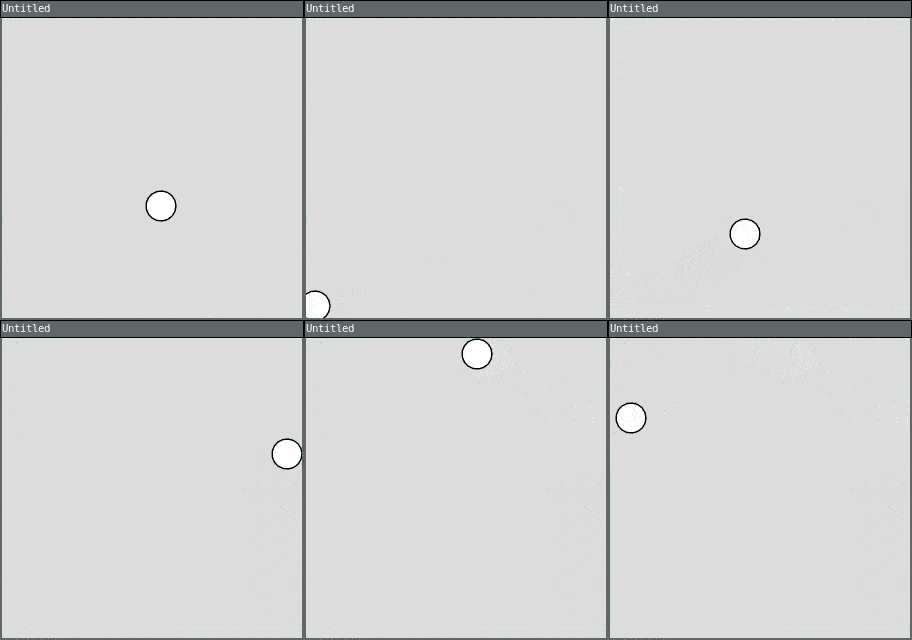
Here's an example that uses if statements to make a ball bounce:
require("L5")

ballX = 150
ballY = 150
speedX = 3
speedY = 2

function setup()
  size(300, 300)

  printToScreen()

  describe('The ball moves and bounces off the edges of the window')
end

function draw()
  background(220)

  -- Move the ball
  ballX = ballX + speedX
  ballY = ballY + speedY

  -- Bounce off left and right edges
  if ballX < 0 or ballX > width then
    speedX = speedX * -1
  end

  -- Bounce off top and bottom edges
  if ballY < 0 or ballY > height then
    speedY = speedY * -1
  end

  -- Draw the ball
  circle(ballX, ballY, 30)
end
Practice
Before moving on to the next tutorial, practice using if statements!
Here are some ideas:
- Create a program that changes the background color based on where the mouse is
- Draw different shapes depending on which third of the screen the mouse is in
- Create a simple game where clicking on a moving circle gives you points
- Make a traffic light that changes color when you click it
- Create a drawing program that changes colors or tools based on mouse position
Next tutorial: Animation
This tutorial is adapted from If Statements by Happy Coding, licensed under CC BY 4.0.