Input
Previous tutorial: Animation
Note: If you are running your programs by dragging their project folder onto the Love application, be sure to add the printToScreen() function within your setup() to be able to see the output of print() commands in your program window.
You now know how to call functions, use variables, create variables and functions, use if statements, and create animations. This tutorial shows you how to get user input to make your programs interactive!
Mouse Position
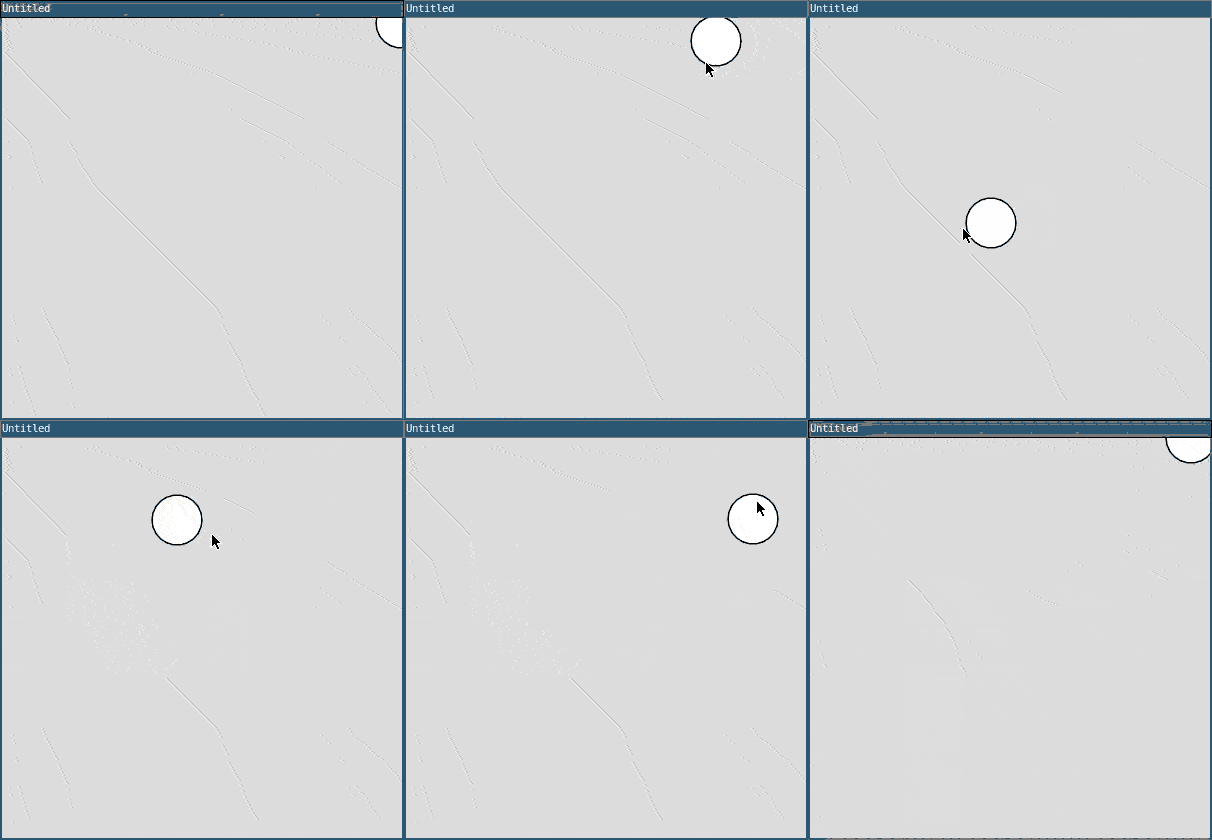
L5 provides mouseX and mouseY variables that hold the current position of the mouse cursor in the window. L5 automatically updates these variables, so you can use them in the draw() function to get the position of the mouse.
require("L5")

function setup()
  size(400, 400)
end

function draw()
  background(220)
  circle(mouseX, mouseY, 50)
end
This program draws a circle wherever the mouse cursor is!
Mouse Buttons
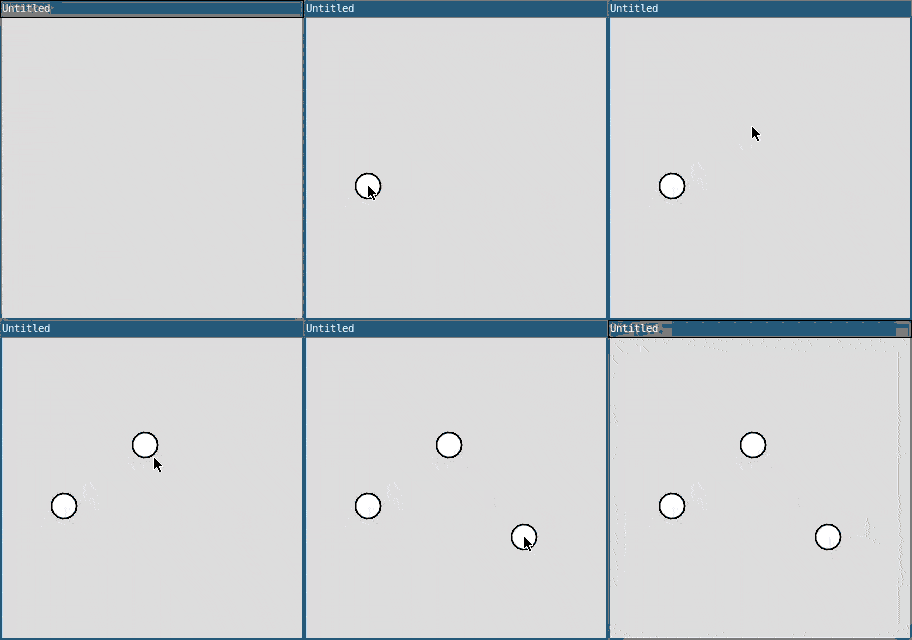
L5 provides a mouseIsPressed variable that is true when the mouse button is pressed, and false otherwise.
require("L5")

function setup()
  size(300, 300)
  background(220)
end

function draw()
  if mouseIsPressed then
    circle(mouseX, mouseY, 25)
  end
end
This program lets you draw with circles whenever the mouse is pressed. Notice that the code does not call background() in the draw() function, so new circles are drawn on top of old circles.
Mouse Events
The mouseIsPressed variable is useful when you want to do something continuously, as long as the user has the mouse pressed. But what if you want to detect one-time input like a mouse click?
These one-time inputs are called events, and L5 provides functions that it automatically calls whenever an event happens.
L5 provides these mouse event functions:
mousePressed()- called once when the mouse button is pressedmouseReleased()- called once when the mouse button is releasedmouseClicked()- called once when the mouse is clicked (press and release)mouseMoved()- called when the mouse moves but a button is not pressed downmouseDragged()- called when the mouse moves and a button is pressedmouseWheel()- called when you scroll with the mouse wheel- If you need to know which mouse button is pressed, check out the
mouseButtonvariable.
You define these functions, and L5 calls them for you:
require("L5")

r = 128
g = 128
b = 128

function setup()
  size(300, 300)

  -- displays output of print() function onscreen
  printToScreen()
end

function draw()
  background(r, g, b)
end

function mousePressed()
  r = 0
  g = 255
  b = 0
  print("Mouse pressed!")
end

function mouseReleased()
  r = 255
  g = 255
  b = 0
  print("Mouse released!")
end

function mouseDragged()
  r = 0
  g = 0
  b = 255
  print("Mouse dragged!")
end
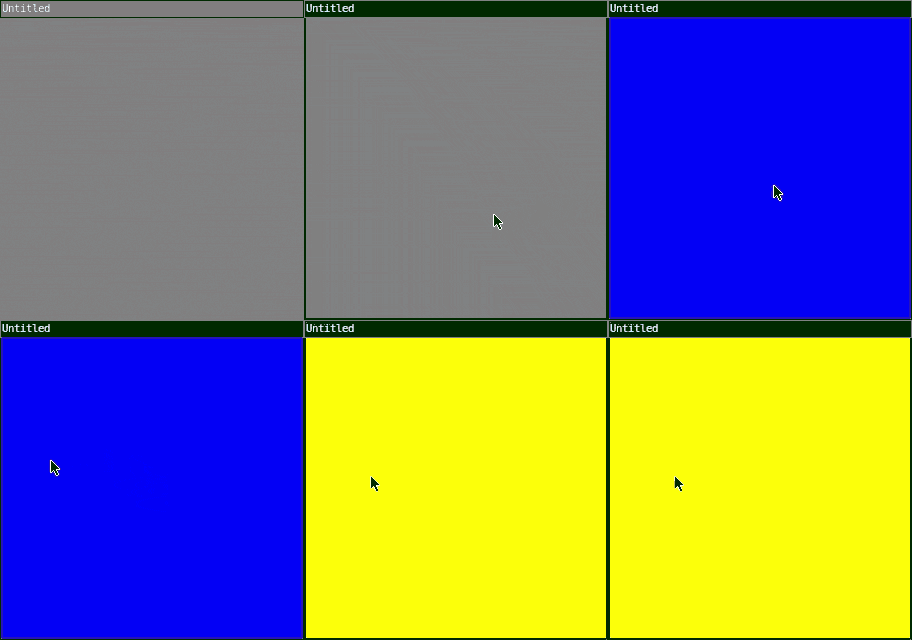
The program starts out gray. When you press the mouse, it turns green. When you release, it turns yellow. When you drag, it turns blue.
Drawing Program
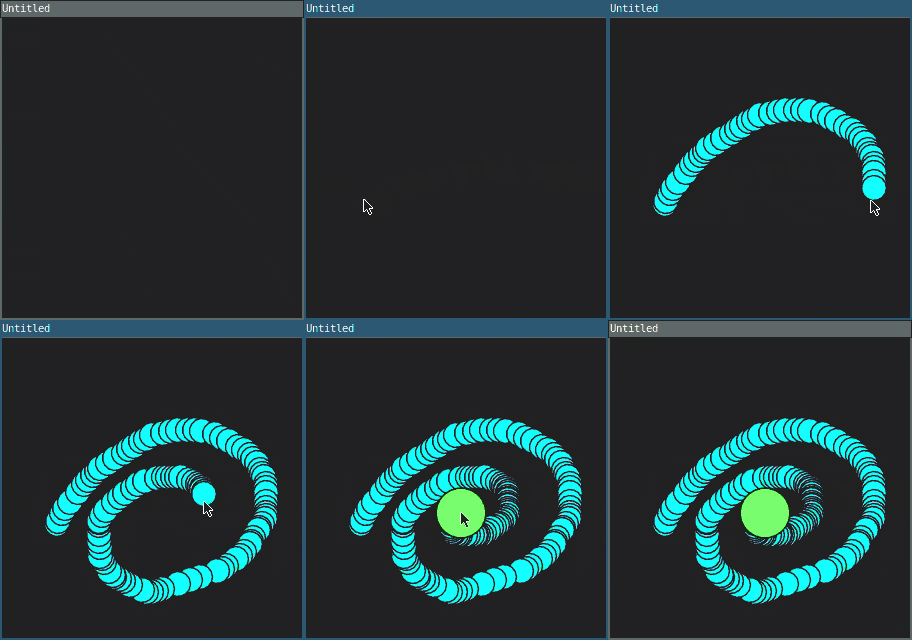
Here's a complete drawing program that uses mouse events:
require("L5")

function setup()
  size(300, 300)
  background(32)
end

function draw()
  if mouseIsPressed then
    fill(0, 255, 255)
    circle(mouseX, mouseY, 25)
  end
end

function mouseClicked()
  fill(0, 255, 0)
  circle(mouseX, mouseY, 50)
end
Inside the draw() function, the code checks mouseIsPressed and draws small cyan circles. Inside the mouseClicked() function, the code draws large green circles. So you can hold the mouse to draw small circles, or click to draw large circles!
Keyboard Input
Similar to mouse input, L5 provides keyboard input variables and event functions.
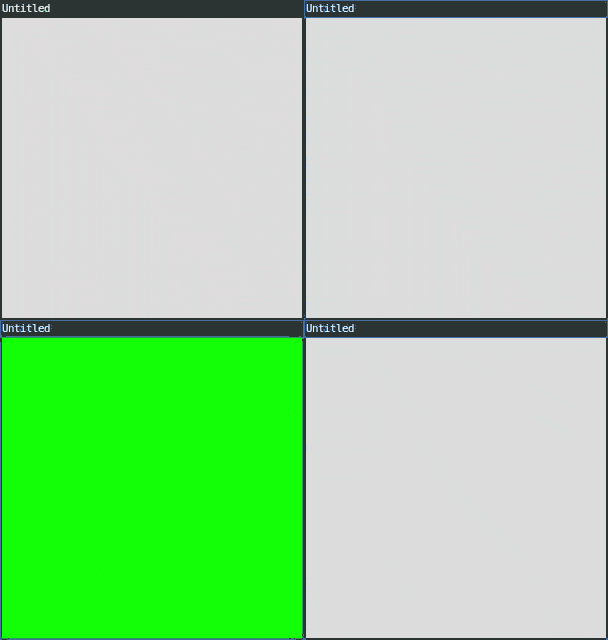
The keyIsPressed variable is true when any key is pressed:
require("L5")

function setup()
  size(300, 300)
end

function draw()
  if keyIsPressed then
    background(0, 255, 0)
  else
    background(220)
  end
end
This program shows a green background when any key is pressed.
Keyboard Events
L5 provides these keyboard event functions:
keyPressed()- called once when a key is pressedkeyReleased()- called once when a key is releasedkeyTyped()- called once when a key is typed (pressed and released)
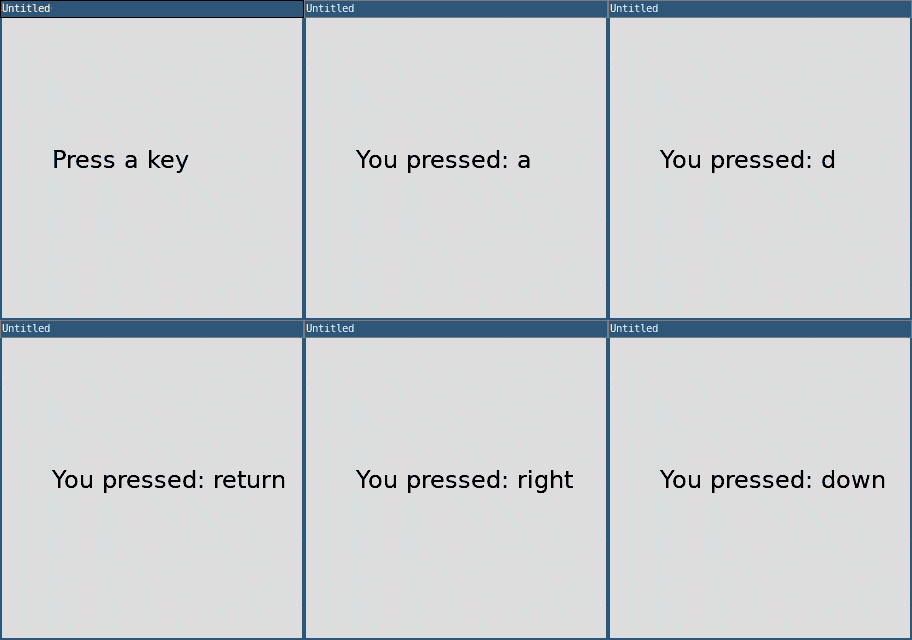
The key variable holds the most recently pressed key:
require("L5")

message = "Press a key"

function setup()
  size(300, 300)
  textSize(24)

  -- displays output of print() function onscreen
  printToScreen()
end

function draw()
  background(220)
  fill(0)
  text(message, 50, 150)
end

function keyPressed()
  message = "You pressed: " .. key
  print(message)
end
The .. operator in Lua concatenates (joins) strings together.
Handling Multiple Keys
What if you want to handle multiple keys being pressed at the same time? For example, moving a character with arrow keys where you can move diagonally?
The key variable only hold the most recent key pressed. This limits you to only knowing about one key at a time. But what if the user is holding down multiple keys at the same time?
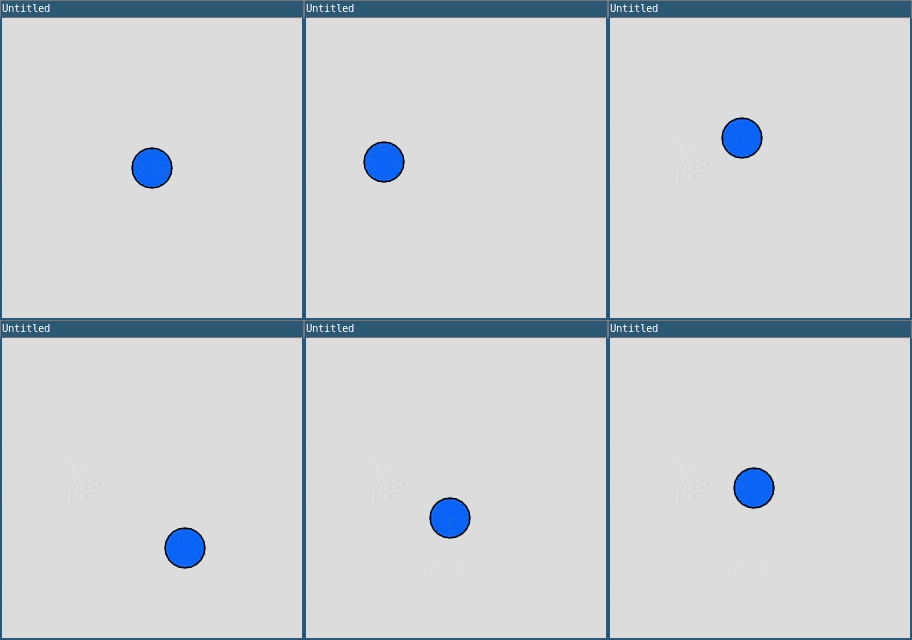
The keyIsDown() function takes a key parameter and returns a boolean: true if the corresponding key is currently down, and false if it’s not. Here’s an example:
require("L5")

playerX = 150
playerY = 150

function setup()
  size(300, 300)
end

function draw()
  background(220)

  -- Check for arrow keys
  if keyIsDown("up") or keyIsDown("w") then
    playerY = playerY - 3
  end
  if keyIsDown("down") or keyIsDown("s") then
    playerY = playerY + 3
  end
  if keyIsDown("left") or keyIsDown("a") then
    playerX = playerX - 3
  end
  if keyIsDown("right") or keyIsDown("d") then
    playerX = playerX + 3
  end

  -- Draw player
  fill(0, 100, 255)
  circle(playerX, playerY, 40)
end
Cheat Sheet
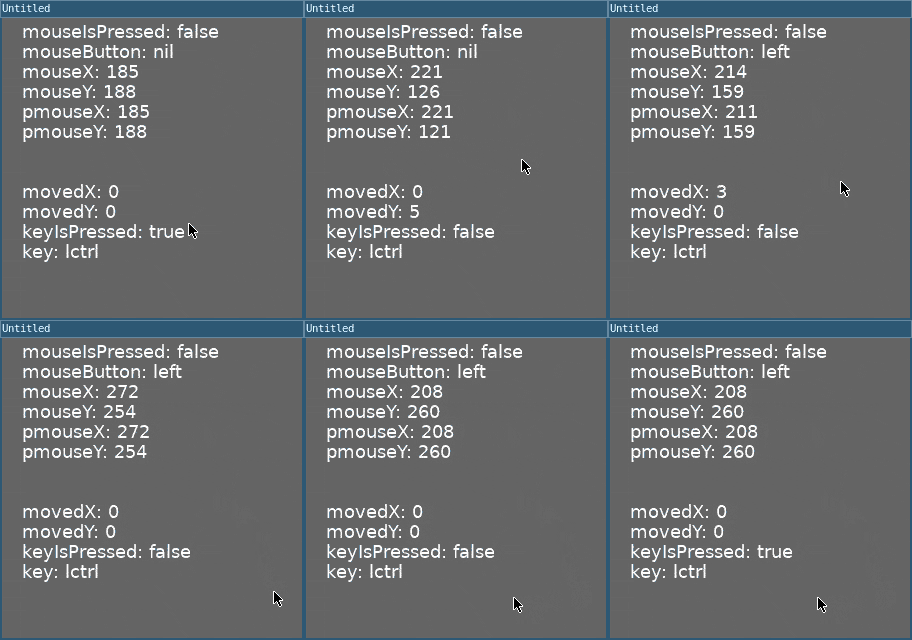
This program shows a bunch of the variables and event functions you can use to get user input:
require("L5")

function setup()
  size(300, 300)

  -- displays output of print() function onscreen
  printToScreen()
end

function draw()
  background(100);
  textSize(18)
  fill(255)

  text('mouseIsPressed: ' .. str(mouseIsPressed), 20, 20)
  text('mouseButton: ' .. str(mouseButton), 20, 40)
  text('mouseX: ' .. mouseX, 20, 60)
  text('mouseY: ' .. mouseY, 20, 80)
  text('pmouseX: ' .. pmouseX, 20, 100)
  text('pmouseY: ' .. pmouseY, 20, 120)
  text('movedX: ' .. movedX, 20, 180)
  text('movedY: ' .. movedY, 20, 200)
  text('keyIsPressed: ' .. str(keyIsPressed), 20, 220)
  text('key: ' .. key, 20, 240)
end

function keyPressed()
  print('keyPressed: ' .. key)
end

function keyReleased()
  print('keyReleased: ' .. key)
end

function keyTyped()
  print('keyTyped: ' .. key)
end

function mousePressed()
  print('mousePressed')
end

function mouseReleased()
  print('mouseReleased')
end

function mouseClicked()
  print('mouseClicked')
end

function mouseMoved()
  print('mouseMoved')
end

function mouseDragged()
  print('mouseDragged')
end

function mouseWheel()
  print('mouseWheel')
end
There are other input variables and functions. See the Events section in the L5 reference for more info.
Practice
Before moving on to the next tutorial, practice using input!
Here are some ideas:
- Create a program that draws different shapes based on which key is pressed
- Make a simple painting program with different colors for different mouse buttons
- Create a game where you move a character with the mouse
- Make a program that changes background color based on mouse position
- Create a "catch the circle" game where clicking a moving target gives you points
- Create a program where the user controls a ball that bounces around the screen. Add acceleration, gravity, and braking. Instead of a circle, make it a spaceship (like from the game Asteroids) where you control the direction and acceleration.
Next tutorial: For Loops
This tutorial is adapted from Input by Happy Coding, licensed under CC BY 4.0.