Using Variables
Previous tutorial: Calling Functions
Now you know how to call functions and pass parameters into them. You've been passing numbers as parameters, like this:
circle(200, 150, 300)
But knowing exactly what values to use for those parameters can be annoying, so this tutorial shows you how to use variables to make your life a little easier.
Values
Before talking about variables, let's take a step back and talk about values.
Values are the numbers you've been passing into functions as parameters. For example:
circle(200, 150, 300)
This line of code passes the values 200, 150, and 300 into the circle() function as parameters to set the x, y, and diameter of the circle.
Operators
When you get down to the details, computers are really just calculators. They crunch numbers by modifying values with operators like +, -, *, and /.
You can apply an operator to two values to get a third value, and you can then use that new value just like you can use any other value.
So you could rewrite the above line of code like this:
circle(100 + 100, 300 / 2, 100 * 3)
This line of code does the exact same thing: it passes the values 200, 150, and 300 into the circle() function. The computer evaluates 100 + 100 to get 200, 300 / 2 to get 150, and 100 * 3 to get 300.
Using operators might not seem very useful yet, but it will make more sense as you learn more about variables.
Variables
A variable is a name that points to a value.
For example, L5 provides a width variable that points to the width of the window, and a height variable that points to the height of the window.
To use a variable, write its name wherever you would normally use a value, like in the parameters you pass to a function:
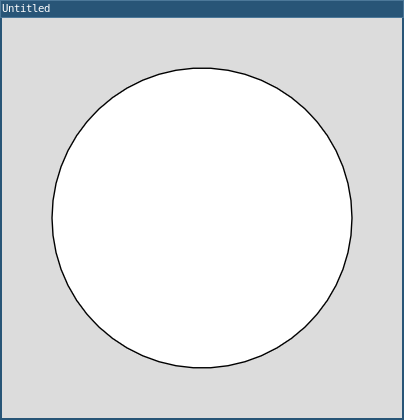
require("L5")

function setup()
  size(400, 400)
end

function draw()
  background(220)
  circle(width / 2, height / 2, 300)
end
The code width / 2 takes the width variable, divides it by 2, and evaluates to a value. If the window is 400 pixels wide, then width / 2 evaluates to 200.
Similarly, height / 2 evaluates to half the height of the window.
So this code draws a circle in the center of the window. Try changing the size of the window to see the circle stay centered!
Why Variables?
Variables are useful because they let you write code that works with different values, without changing your code.
For example, compare these two programs:
Without variables:
require("L5")

function setup()
  size(400, 400)
end

function draw()
  background(220)
  circle(200, 200, 300)
end
If you want to change the size of this window, you have to change the size() function AND the circle parameters. That's annoying!
With variables:
require("L5")

function setup()
  size(400, 400)
end

function draw()
  background(220)
  circle(width / 2, height / 2, 300)
end
Now if you change the size of the window, the circle stays in the center. You only have to change one line of code!
Expressions
When you combine values, operators, and variables, that's called an expression. An expression evaluates to a single value.
For example, width / 2 is an expression that divides the width variable by 2.
You can use expressions anywhere you can use a value: as parameters to functions, in other expressions, or to create your own variables (you'll learn about that in the next tutorial).
Here's a more complex example:
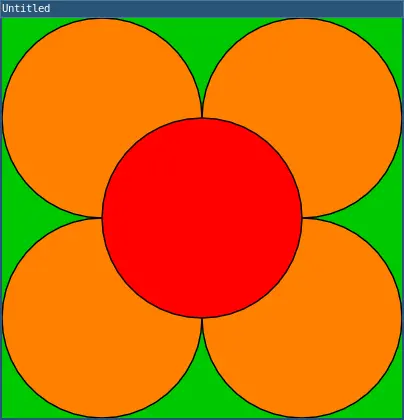
require("L5")

function setup()
  size(400, 400)
end

function draw()
  background(0, 200, 0)

  -- Draw orange petals
  fill(255, 128, 0)
  circle(width / 4, height / 4, width / 2)
  circle(width * 0.75, height / 4, width / 2)
  circle(width / 4, height * 0.75, width / 2)
  circle(width * 0.75, height * 0.75, width / 2)

  -- Draw red center
  fill(255, 0, 0)
  circle(width / 2, height / 2, width / 2)
end
This code draws a flower that fills up the window. The flower is drawn using the width and height variables, so it will always fill the window no matter what size you make it.
Try changing the size of the window to see the flower scale up and down!
Built-in Variables
L5 provides several built-in variables you can use:
width- the width of the windowheight- the height of the windowmouseX- the current horizontal position of the mousemouseY- the current vertical position of the mouseframeCount- the number of frames that have been drawn
Here's an example using the mouse variables:
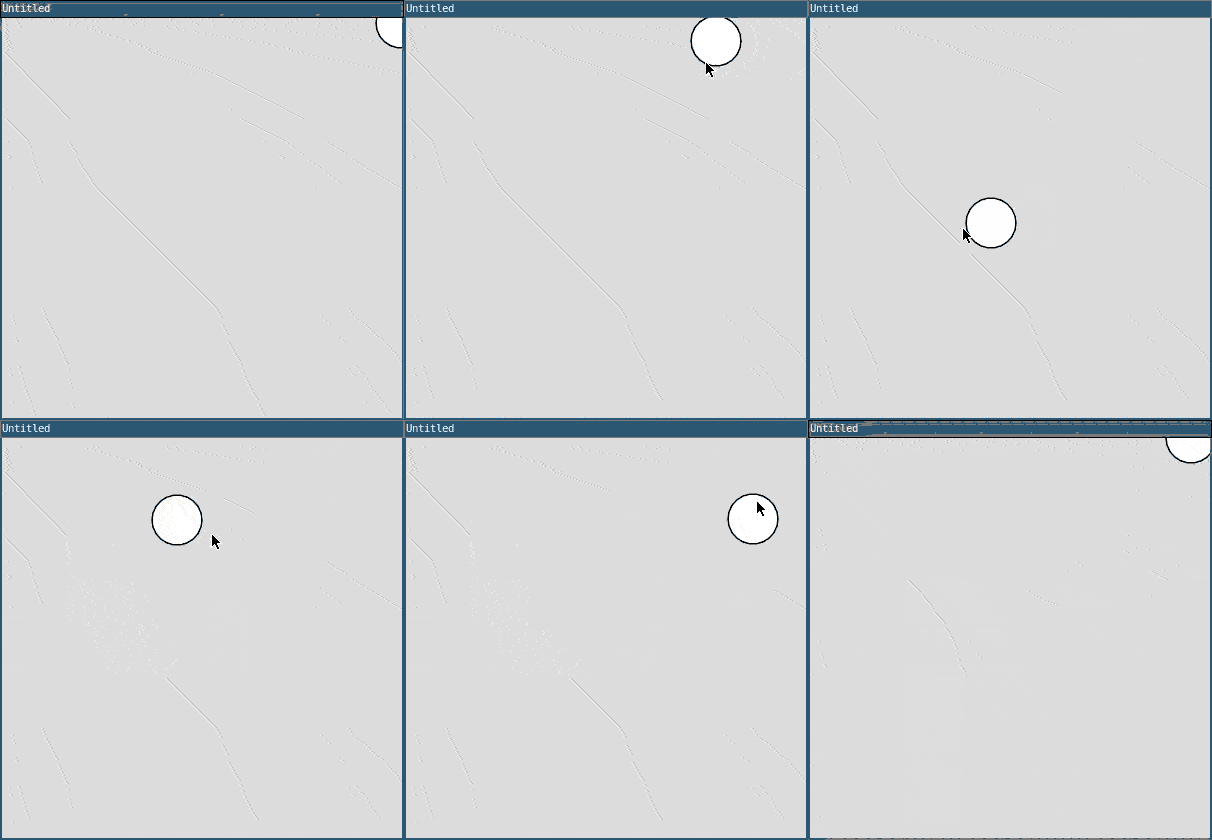
require("L5")

function setup()
  size(400, 400)
end

function draw()
  background(220)
  circle(mouseX, mouseY, 50)
end
This code draws a circle wherever the mouse is! The mouseX and mouseY variables are automatically updated by L5, so you can use them to get the current mouse position.
Calculating Size
You can use operators and variables to calculate sizes relative to the window:
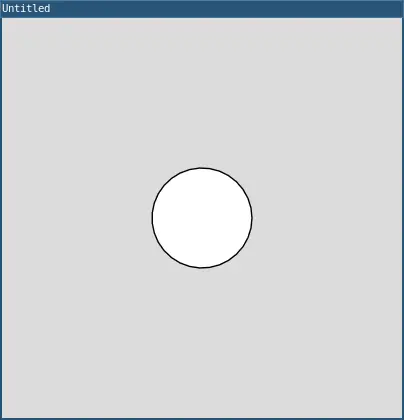
require("L5")

function setup()
  size(400, 400)
end

function draw()
  background(220)

  -- Draw a circle that's 1/4 the width of the window
  circle(width / 2, height / 2, width / 4)
end
This is useful when you want your drawings to scale with the window size!
Practice
Before moving on to the next tutorial, try modifying your drawing from the previous tutorial to use the width and height variables. This way your drawing will work with any window size!
Here are some ideas:
- Make a drawing that scales with the window size
- Create a drawing that follows the mouse using
mouseXandmouseY - Draw a flower like the example above, but add more petals
- Create a target (concentric circles) that stays centered
Next tutorial: Creating Variables
This tutorial is adapted from Using Variables by Happy Coding, licensed under CC BY 4.0.